Category: Productivity

  • Top 6 Smart Office Trends to Adopt for an Improved Workflow

    Top 6 Smart Office Trends to Adopt for an Improved Workflow

    The office landscape is undergoing a dramatic transformation. Gone are the days of sterile cubicles and monotonous routines. Today’s smart offices are hubs of innovation. They’re designed to empower employees, optimize workflows, and foster collaboration.

    This shift is driven by technology. Including smart features that seamlessly integrate into the physical workspace. But with so many options available, where do you begin? 

    Here are the top six smart office trends you should consider adopting. They can power productivity and boost employee satisfaction.

    1. Internet of Things (IoT) Devices

    Connected Office Equipment

    IoT devices are revolutionizing the workplace. These devices connect office equipment, allowing them to communicate and operate more efficiently. For example, smart printers can alert you when they need more paper or toner. Smart coffee machines can ensure a fresh brew is ready when you arrive. IoT devices help automate mundane tasks, saving time and reducing stress.

    Smart Lighting and Climate Control

    Smart lighting and climate control systems can adjust based on occupancy and time of day. These systems use sensors to track the environment and make adjustments. This ensures optimal comfort while reducing energy costs. Employees work better in a well-lit, comfortable space. Automating these adjustments improves office efficiency.

    Enhanced Security

    IoT devices can also enhance office security. Smart locks and cameras provide real-time monitoring and control. You can grant access remotely or receive alerts if something unusual occurs. This provides peace of mind and ensures your office remains secure.

    2. Artificial Intelligence (AI) and Machine Learning

    Personalized Workspaces

    AI can create personalized workspaces. It learns employees’ preferences and adjusts settings accordingly. This includes desk height, lighting, and even digital workspace layout. Personalized environments improve comfort and productivity.

    Virtual Assistants

    AI-powered virtual assistants help manage tasks and schedules. They can set reminders, book meetings, and provide information on demand. Virtual assistants like these streamline daily activities. This allows employees to focus on more critical tasks.

    Predictive Maintenance

    AI can predict when office equipment will need maintenance. This reduces downtime and ensures everything runs smoothly. Predictive maintenance extends the lifespan of equipment and prevents unexpected breakdowns.

    3. Collaborative Technologies

    Unified Communication Platforms

    Unified communication platforms integrate messaging, video conferencing, and email. This simplifies communication and ensures everyone stays connected. Platforms like these reduce the need to juggle several apps and streamline workflows.

    On average, employees waste nearly 4 hours each week reorienting after an app switch.

    Digital Whiteboards

    Digital whiteboards enhance collaboration during meetings. They allow team members to share ideas in real time, regardless of location. Digital whiteboards save and share notes instantly, improving meeting efficiency and follow-up.

    Project Management Tools

    Project management tools keep everyone on the same page. They track tasks, deadlines, and progress. These tools provide visibility into project status. This helps ensure nothing falls through the cracks. By using project management software, teams can work more efficiently. As well as meet deadlines consistently.

    4. Remote Work Solutions

    Cloud-Based Services

    Cloud-based services enable remote work. They allow employees to access files and applications from anywhere. This flexibility is crucial in today’s work environment. Cloud services also provide robust security and backup solutions, ensuring data remains safe.

    Virtual Private Networks (VPNs)

    VPNs secure remote connections. They encrypt data and protect against cyber threats. VPNs ensure that employees can work safely from any location. Implementing a VPN is essential for maintaining security in a remote work setup.

    Video Conferencing Tools

    Video conferencing tools promote communication with remote teams. They provide face-to-face interaction, which is vital for team cohesion. High-quality video and audio ensure effective communication. These tools also offer features like screen sharing and recording, enhancing their utility.

    5. Smart Furniture

    Ergonomic Designs

    Smart furniture includes ergonomic designs that promote health and productivity. Adjustable desks and chairs can be customized to fit each employee. This reduces the risk of injury and improves comfort. Ergonomic furniture is an investment in employee well-being.

    Integrated Technology

    Some smart furniture integrates technology, such as wireless charging and built-in sensors. Desks with integrated charging stations keep devices powered without clutter. Sensors can remind employees to take breaks or adjust their posture. These features contribute to a more efficient and healthy workspace.

    Modular Furniture

    Modular furniture offers flexibility. It can be easily reconfigured to fit changing needs. This is ideal for dynamic work environments. Modular furniture supports collaboration. I can also be adapted as teams grow or projects change.

    6. Data Analytics

    Performance Metrics

    Data analytics tools track performance metrics. They provide insights into productivity, workflow efficiency, and employee satisfaction. By analyzing this data, managers can make informed decisions. This leads to improved processes and better resource allocation.

    Space Utilization

    Analytics can also optimize the use of space. Sensors and software track how office space is used. This information helps in designing more efficient layouts. Optimizing space reduces costs and creates a more functional work environment.

    Predictive Insights

    Predictive analytics forecast trends and potential issues. This allows businesses to proactively address problems before they escalate. Predictive insights can improve everything from inventory management to employee scheduling.

    Contact Us for Help Optimizing Your Technology

    Adopting smart office trends can transform your workplace. By integrating these trends, businesses can create a more productive work environment. Stay ahead of the curve and embrace these innovations to improve your workflow. 

    The future of work is smart, and the time to start is now. Need some help from our IT optimization experts?

    Contact us today to schedule a chat.

    Featured Image Credit

    This Article has been Republished with Permission from The Technology Press.
  • Streamlining Success: A Guide to Task Automation for Small Enterprises

    Streamlining Success: A Guide to Task Automation for Small Enterprises

    Running a small business is a whirlwind. You juggle a million tasks and wear countless hats. You also constantly fight the clock. What if you could reclaim some of that precious time? 

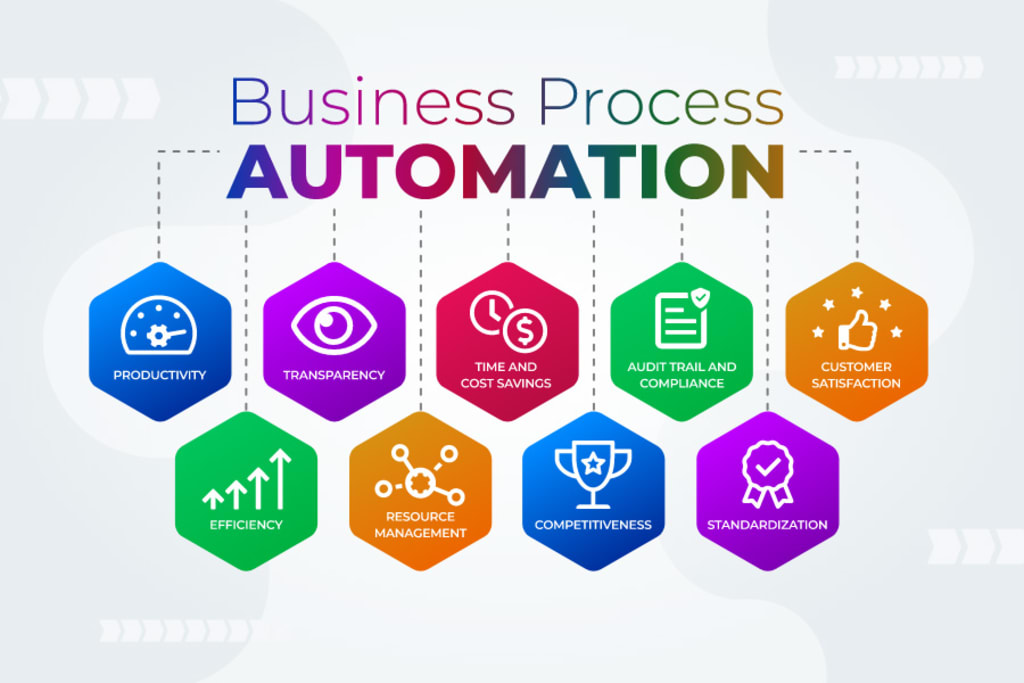
    Enter task automation. It’s your secret weapon for streamlining your workflow and boosting productivity. By automating routine and repetitive tasks, small businesses can gain many benefits. Such as freeing up valuable time and resources. Every minute saved can translate to increased productivity and profitability.

    This guide will walk you through the essentials of small business task automation. It’s designed to help you understand its benefits and identify tasks to automate. As well as choose the right tools and install automation effectively. 

    What is Task Automation?

    Task automation involves using technology to automate repetitive, manual tasks. Imagine software handling data entry, scheduling appointments, or sending out invoices. All this without your constant oversight. This frees you up to focus on strategic initiatives that drive growth.

    88% of small business owners say that automation helps them compete with larger companies.

    Why Automate in Your Small Business?

    Here’s why task automation is a game-changer for small businesses:

    • Boosts Efficiency: Repetitive tasks take a huge chunk of time. Automation eliminates the need for manual effort. This allows your team to focus on higher-value activities.
    • Reduces Errors: Humans make mistakes. Automation minimizes errors in data entry. As well as calculations and other repetitive tasks. This ensures better accuracy and consistency.
    • Saves Money: Time saved is money saved. By automating tasks, you can free up your team’s time. As well as reduce the need for more manpower.
    • Improves Customer Service: Automation can handle routine customer inquiries. It can also send out order confirmations. This frees your team to focus on providing personalized service to customer needs.
    • Enhances Scalability: As your business grows, automation can handle the increased workload. You can grow without needing to add more staff immediately.

    What Tasks Can You Automate?

    You can automate many tasks across different departments in a small business. Here are some examples:

    • Marketing: Schedule social media posts and send automated email campaigns. You can also generate personalized marketing materials.
    • Sales: Generate quotes and send automated follow-up emails. Track sales performance through automated reports.
    • Customer Service: Set up chatbots to answer frequently asked questions. Automate email responses for order confirmations. Have automation manage appointment scheduling.
    • Human Resources: Automate payroll processing and manage employee onboarding tasks. Send out automated reminders for performance reviews.
    • Finance: Automate data entry for invoices and receipts. Schedule recurring payments and generate automated financial reports.

    Getting Started with Task Automation:

    Ready to automate? Successfully implementing automation requires careful planning and execution. Here’s how to get started.

    Identify Repetitive Tasks

    Analyze your daily workflows and pinpoint repetitive tasks. Look for tasks that consume a significant amount of time. Ask employees what manual tasks take them the most time.

    Choose the Right Tools

    There’s a vast array of automation tools available. You’ll find everything from simple scheduling apps to complex workflow management platforms. Research and choose tools that integrate seamlessly. They should be compatible with your existing software. Get expert IT help for guidance on ensuring the tools cater to your specific needs.

    Start Small

    Don’t try to automate everything at once. You and your team can easily get overwhelmed. Begin by automating a few key tasks. Then, gradually expand as you get comfortable with the technology.

    Invest in Training

    Provide your team with proper training on the new automation tools. Ensure they understand how to use them effectively. You want them to feel comfortable integrating them into their workflow.

    Overcoming Common Challenges

    Implementing task automation can come with challenges. Here are some common issues and how to overcome them:

    • Resistance to Change: Employees may resist new technologies. Address this by communicating the benefits of automation. Also, involve them in the process.
    • Technical Difficulties: Technical issues can arise during implementation. Work closely with your provider’s support team to resolve any problems quickly.
    • Integration Issues: Ensure your automation tools can seamlessly integrate with your existing systems. Test integrations thoroughly before full implementation.
    • Cost Concerns: The initial investment in automation tools can be high. Focus on the long-term savings and benefits to justify the cost.
    • Security Risks: Automating tasks can introduce security risks. Put in place strong security measures to protect sensitive data.

    The Future of Automation for Small Businesses

    Automation is not about replacing humans. It’s about empowering them. By automating repetitive tasks, you free up your team’s time and talent. This allows them to focus on the things that only they can do. Including strategic thinking, creative problem-solving, and building strong customer relationships. 

    Automation technology will continue to evolve. Small businesses will have access to even more powerful tools to boost productivity. Automating now gets you ahead of the competition.

    Ready to Embrace the Time-Saving Power of Automation?

    We can help you reclaim your time and empower your team. Our technology experts can guide you in technology optimization. We’ll help you find the right automation areas for the biggest benefit. 

    Contact our automation experts today to schedule a chat.

    Featured Image Credit

    This Article has been Republished with Permission from The Technology Press.

  • iPhone Running Slow? Speed It up with One of These Tips

    iPhone Running Slow? Speed It up with One of These Tips

    Let’s face it, iPhones are amazing devices. But even the sleekest, most powerful iPhone can succumb to the dreaded slowdown. Apps take forever to load and scrolling feels sluggish. Pretty soon, simple tasks become frustrating ordeals.

    If your iPhone has gone from speedy sidekick to sluggish snail, don’t despair! We are sharing some easy tips to get your iPhone back in tip-top shape.

    Give it a Restart: The Digital Power Nap

    This might seem like a no-brainer, but you’d be surprised! How long has it been since you’ve turned off your device? Just like us, iPhones need an occasional reboot. Restart your phone. This clears temporary files, closes lingering apps, and frees up memory. It’s a quick and easy way to give your iPhone a much-needed refresh.

    Clean Out the Digital Clutter

    Our iPhones can become digital packrats, hoarding photos, videos, and apps we no longer use. Do you really need all those selfies? This clutter can slow things
    down. Take some time to declutter your digital life.

    Photos and Videos

    Review your photo and video library. Delete blurry pics, duplicates, and anything you don’t need anymore. Consider using cloud storage services like iCloud Photos or OneDrive. These store precious memories without clogging up your device’s storage space. Many also have an automated upload feature when you snap a new pic.

    Unused Apps

    Be honest, how many apps do you use daily? Identify apps you haven’t touched in months and delete them. This frees up phone storage space. It can also reduce background activity and improve battery life.

    Offload Unused Apps & Keep Data (iOS 11 and later)

    This nifty feature lets you free up storage space by keeping an app’s data while deleting the app itself. When you need the app again, you can simply download it without losing any saved data.

    Remove Unneeded Podcasts

    Many podcasts download to your device without you realizing it. This allows you to listen without a direct connection but can fill up your device fast! If you listen to several podcasts, they all can be taking up valuable space. Review your iPhone’s storage and remove unnecessary podcast downloads.

    Tame Background App Refresh

    Background App Refresh allows apps to fetch new content. This happens even when you’re not actively using them. It can be helpful for staying up-to-date but it can also drain your battery and slow down your phone.

    Review your Background App Refresh settings. Turn it off for apps you don’t need constantly refreshing in the background.

    Not Every App Needs to Know Where You Are

    Many apps constantly track your location. They do it even when you’re not using them. This location tracking can drain your battery and impact performance. Review your Location Services settings. Restrict access for apps that don’t need constant location awareness.

    Reduce Motion Effects

    Apple’s fancy motion effects include things like app parallax and zoom animations. They can be beautiful, but they can also be resource-intensive. Turn off iPhone motion effects. This can free up processing power and make your iPhone feel snappier.

    Update Your Apps and iOS

    App and iOS updates often include performance improvements and bug fixes. Make sure you’re running the latest versions of your apps and iOS. This ensures
    optimal performance and security.

    Disable Automatic Downloads

    Automatic app and iOS updates are convenient, but they can sometimes happen at inconvenient times, slowing down your phone. Consider disabling automatic downloads. Update apps and iOS manually when you have time and a good Wi-Fi connection. Make this a recurring task on your calendar. These updates are important for security, so you don’t want to forget them.

    Nuclear Option: Reset Your iPhone

    If all else fails, a factory reset might be necessary. This wipes your iPhone clean and restores it to its original settings. It can be the most effective way to clear out bugs that might be causing slowdowns.

    But be careful with this nuclear option. Before doing a factory reset, be sure to back up your iPhone. Also, sign out of iCloud. This ensures you avoid losing important data.

    Check Your Battery Health

    A degraded battery can also contribute to slowdowns. Head to Settings > Battery > Battery Health. Here you can see your iPhone’s maximum battery capacity. If
    it’s below 80%, your phone might be throttling performance to conserve battery life. In this case, consider replacing your battery for optimal performance.

    Follow these simple tips. They’ll help you diagnose the cause of your iPhone’s sluggishness as well as get it running smoothly again. A little maintenance goes
    a long way in keeping your iPhone happy and fast!

    Need Help with a Smartphone or Tablet?

    When your smartphone isn’t working right, it can be a real pain. Don’t struggle. Get help from the pros. Our team can diagnose internal and external smartphone issues as well as help with tablets, laptops, and other devices.

    Contact us today to see how we can help.

    Featured Image Credit

    This Article has been Republished with Permission from .

  • 14 Helpful Tips for New Year Digital Decluttering

    14 Helpful Tips for New Year Digital Decluttering

    These days, our lives are intricately woven into the digital fabric. From emails to photos, documents to apps, our devices store tons of information. It’s easy to feel overwhelmed at the sight of an endless inbox or app library.

    As the new year begins, it’s the perfect time for a digital declutter. A clean and organized digital environment can help you improve your productivity. It also reduces stress. Here are some practical tips to help you declutter your digital space.

    1. Start with a digital inventory

    Before diving in, assess your digital landscape. Take stock of your devices, accounts, and digital files. Knowing what you have is the first step toward effective decluttering.

    2. Focus on your most-used digital spaces

    You don’t have to declutter everything at once. Start with the digital spaces that you use the most. Such as your email, cloud storage, and social media. These are the places where digital clutter can accumulate. As well as affect your performance and well-being.

    Also, focus on your primary devices. Like your smartphone, laptop, or tablet. Decluttering these devices will have an immediate impact on your daily life.

    3. Organize your files and folders

    One of the best ways to declutter your digital space is to organize your files and folders. Create a systematic file organization structure. Use clear, intuitive folder names and categorize files logically. Use color coding to quickly identify specific subjects. This makes locating documents easier and prevents clutter from accumulating.

    Delete or archive any files that you don’t need anymore. Back up your important data to a cloud service or an external drive.

    4. Clean up your email inbox

    Your email inbox can be a source of stress and distraction. Especially if it’s overflowing with unread or unwanted messages.

    To declutter your email inbox, you can:

    • Unsubscribe from newsletters or promotional emails that you don’t read or need.
    • Use filters or labels to sort your emails by sender, subject, or priority.
    • Archive or delete old or irrelevant emails.
    • Set up a folder or label for the current year, quarter, or month, and move your emails there.
    • Refresh your email signature and make sure it has your correct information.

    5. Clean up your social media

    Social media can be a great way to connect with others. But it can also be a source of digital clutter. Especially if you have too many accounts, posts, messages, or notifications.

    To declutter your social media accounts, you can:

    • Delete or deactivate any accounts that you don’t use or need.
    • Unfollow or mute any accounts that don’t add value to your life.
    • Clear your message inboxes and delete any spam or unwanted messages.
    • Delete or archive any posts or photos that you don’t want to keep.
    • Adjust your privacy and notification settings to suit your preferences.

    6. Review your subscriptions

    Another way to declutter your digital space is to review your subscriptions. You may have signed up for services that you don’t use or need anymore. Cancel any subscriptions that you don’t need. These may include streaming services, membership sites, cloud services, or mobile apps.

    This decluttering move can help you save money besides streamlining your digital environment.

    7. Review and delete unused apps

    Apps can clutter your device and drain its resources. Review your apps and delete the ones you seldom use. Keep only essential applications to optimize device performance.

    Old, unused mobile apps can also pose a security risk. If you’re not using the app, it’s likely outdated. Update any apps that you’re keeping to properly secure them.

    8. Clear your desktop and downloads folder

    A cluttered desktop and downloads folder can hamper productivity. Move files to appropriate folders and clear your desktop. This creates a clean, distraction-free workspace. It can also speed up your computer.

    9. Secure your digital identity

    Review your online accounts. Delete unused accounts and update passwords for security. Consider using a reputable password manager to enhance your online security.

    10. Evaluate your digital habits

    Reflect on your digital habits. Identify time-wasting activities and limit them. Set boundaries for social media and focus on meaningful online interactions.

    11. Create digital detox days

    Set up specific days for a digital detox. Disconnect from screens. Engage in physical activities and spend quality time with loved ones. Regular digital detox fosters mental well-being.

    12. Streamline notifications

    Excessive notifications can overwhelm and distract. You may feel like you’re not getting anything done because of constant interruptions. Customize app notifications, allowing only essential alerts. This minimizes distractions and enhances focus.

    13. Invest in digital tools

    Use productivity apps and tools. Project management apps, note-taking tools, and calendars help streamline tasks and enhance efficiency.

    14. Practice regular maintenance

    Digital decluttering is not a one-time task. It’s an ongoing process. Schedule regular maintenance sessions to keep your digital life organized and clutter-free.

    Need Help with Data Management Solutions?

    Here’s to stepping into the new year with a clear, focused mind and a more organized digital life. We can help you keep your data under control. We offer effective data storage, backup, and management solutions.

    Contact us today to schedule a chat.


    Featured Image Credit

    This Article has been Republished with Permission from The Technology Press.