

Underwood Parks and Recreation District (UPRD) and Friends of Underwood held a candidates night Oct. 4 at the Underwood Community Center.
Author: Robert Timlick
-

Nov. 5 General Election candidates: Hood River City Council
Amanda Goeke, Curt Ivy, Anna C. Cavaleri and Gladys Rivera -

Nov. 5 General Election candidates: Klickitat Co. Commissioner District 3
Dan Christopher and Ron Ihrig, candidates for Klickitat Co. Commissioner District 3 -

Nov. 5 General Election candidates: Mayor, Cascade Locks
Brenda Wood and Pete Happy, City of Cascade Locks mayor candidates -

About Columbia Gorge News’ election Q&As with local candidates
THE GORGE — Local ballots for the Nov. 5 General Election will be mailed to registered voters in Oregon Oct. 16, and Oct. 18 in Washington. In this issue, Columbia Gorge News begins publishing responses to a Q&A sent to… -

6 Helpful Tips to Troubleshoot Common Business Network Issues
A business network is the lifeblood of operations. It’s the digital artery that pumps data through your organization. It enables everything from email to critical applications and cloud services.
When problems sever that lifeline, the consequences can be catastrophic. Communication is cut off and productivity grinds to a halt. Additionally, it can leave your customers hanging and dry up revenue streams. This is the stark reality of network downtime.
When downtime happens, it’s important to identify the source as fast as possible. Understanding the issue can save you time, money, and countless headaches. Let’s get started on keeping your network up and running smoothly. Read on for six helpful tips to troubleshoot common business network issues.
1. Identify the Problem
Understanding the nature of the problem is the first step in troubleshooting. By gathering detailed information, you can narrow down potential causes.
Determine the Scope
First, determine the scope of the problem. Is it affecting a single user, a group of users, or the entire network? This helps you zero in on the cause, and potential solutions.
For instance, if only one user has issues, it might be a device problem. If the entire network is down, it’s likely a more significant issue.
Ask Questions
Ask users specific questions about the problem. When did it start? What were they doing when it happened? Have they tried any solutions? Gathering detailed information helps pinpoint the cause.
Check Error Messages
Look for error messages or alerts. These can provide clues about the nature of the issue. Document these messages for future reference.
2. Inspect Physical Connections
Physical connections are often overlooked. But they can be a common cause of network issues. Check cables, ports, and power sources. This can help you quickly rule out or identify simple problems.
Check Cables and Ports
Inspect all cables and ports. Ensure that cables are securely connected and undamaged. A loose or damaged cable can cause connectivity issues. Test cables with another device to confirm they work correctly.
Verify Power Sources
Ensure all networking equipment has power. Check power cables and adapters. Sometimes, a simple power issue can cause network problems. Reset power sources if necessary.
Inspect Network Devices
Examine routers, switches, and modems. Ensure they are functioning correctly, and all lights show normal operation. Restart these devices to see if it resolves the issue. Sometimes, a reboot can clear temporary glitches.
3. Test Network Connectivity
Testing network connectivity helps identify where the connection fails. As well as whether the issue is device-specific or network-wide. Using simple tools and tests can provide valuable insights into the problem.
Use Ping and Traceroute
Use ping and traceroute commands to test network connectivity. These tools help identify where the connection fails. For example, if ping works locally but not remotely, the issue might be external.
Test Different Devices
Test the network with different devices. This helps determine if the issue is device-specific or network-wide. Does one device connect successfully while another doesn’t? Then the problem might be with the device, not the network.
Check Wi-Fi Signal Strength
If using Wi-Fi, check the signal strength. Weak signals can cause connectivity issues. Move closer to the router or access point and see if the connection improves. Consider using Wi-Fi analyzers to identify signal strength and interference.
4. Analyze Network Configuration
Network configuration issues can often cause connectivity problems. Check IP settings, DNS settings, and configurations on routers and switches. This can help you identify and resolve misconfigurations. Some of these are a bit technical. They might need the help of an IT services partner.
Check IP Settings
Verify IP settings on affected devices. Ensure devices have the correct IP addresses, subnet masks, and gateways. Incorrect settings can prevent devices from connecting to the network.
Review DNS Settings
Check DNS settings. Incorrect DNS settings can cause problems with accessing websites and services. Use reliable DNS servers and ensure settings are correctly configured.
Inspect Router and Switch Configurations
Review configurations on routers and switches. Ensure there are no incorrect settings or misconfigurations. Check for any changes that might have caused the issue.
5. Monitor Network Performance
Monitoring network performance helps identify ongoing issues and potential bottlenecks. There are many tools you can use for this purpose. They also help pre-warn you of network issues.
Use Network Monitoring Tools
Use network monitoring tools to track performance. These tools provide insights into network traffic, bandwidth usage, and potential issues. They help identify trends and pinpoint problem areas.
Check for Bottlenecks
Identify any network bottlenecks. High traffic or heavy usage can slow down the network. Consider upgrading bandwidth or optimizing traffic flow to ease congestion.
Look for Interference
For wireless networks, look for interference sources. Other electronic devices, walls, and even microwaves can interfere with Wi-Fi signals. Use different channels or frequencies to reduce interference.
6. Ensure Security and Updates
Keeping your network secure and up to date is crucial for smooth operation. Regular updates and security checks can prevent many common issues.
Update Firmware and Software
Ensure all networking equipment has the latest firmware and software updates. Updates often include bug fixes and performance improvements. Regular updates help maintain a stable and secure network.
Scan for Malware
Run malware scans on all devices. Malware can cause various network issues, including slow performance and connectivity problems. Use reputable antivirus software and keep it updated.
Review Security Settings
Check security settings on routers and firewalls. Ensure proper configurations and that no unauthorized changes have occurred. Strong security settings help protect the network from external threats.
Need Help Optimizing Your Business Network?
A reliable network is essential for business operations. Avoid costly downtime issues by working with our team to keep your network in top shape. We can put in place monitoring and other best practices. We’ll ensure your network runs smoothly and fully supports all your needs.
Contact us today to schedule a chat about improving your connectivity.—
This Article has been Republished with Permission from The Technology Press.
-
What Things Should You Consider Before Buying a Used Laptop?
Buying a used laptop can be a great way to save money. But it comes with risks. You need to be careful and thorough in your evaluation. Otherwise, you could end up wasting your money.
You can’t only look at the outside when evaluating technology. This guide will help you understand what to look for when buying a used laptop (or desktop PC). These steps can keep you from losing money on a bad tech decision.
Determine Your Needs
Identify Your Purpose
First, identify why you need the laptop. Are you buying it for work, gaming, or general use? Your purpose will dictate the specifications you need. For example, gaming laptops need powerful GPUs. Business laptops focus on reliability and battery life.
Set a Budget
Decide how much you are willing to spend. Setting a budget helps narrow down your choices. Remember, used laptops vary greatly in price. Knowing your budget beforehand prevents overspending.
Check the Laptop’s Condition
Inspect the Physical Condition
Examine the laptop carefully. Check for any visible damage like cracks, dents, or scratches. Inspect the hinges to ensure they are not loose. A well-maintained exterior often indicates the care the laptop received.
Test the Keyboard and Touchpad
The keyboard and touchpad should work flawlessly. Type a few sentences to see if all keys respond. Test the touchpad for responsiveness and accuracy. These are crucial components, and any issues can be annoying.
Look at the Screen
Turn on the laptop and check the screen. Look for dead pixels, discoloration, or flickering. Ensure the brightness levels adjust properly. A damaged screen can be costly to replace.
Inspect the Ports
Check all the ports on the laptop. Test USB ports, headphone jacks, and charging ports. These should all function correctly. Non-working ports can be inconvenient and limit the laptop’s usability.
Check the Battery Life
Ask About the Battery
Ask the seller about the battery life. An old battery may not hold a charge well. Turn on the laptop and see how long it lasts on battery power. Replacing a battery can be expensive, so ensure the current one meets your needs.
Check Battery Health
Use software to check the battery’s health. Some operating systems have built-in tools for this. A healthy battery should keep most of its original capacity. Poor battery health might mean it needs a replacement soon.
Assess the Internal Components
Processor
The processor determines the laptop’s performance. Check the processor model and speed. Compare it with current standards. Older processors might struggle with modern applications.
RAM
RAM affects multitasking capabilities. Ensure the laptop has enough RAM for your needs. 8GB is the minimum for general use, while 16GB or more is ideal for gaming or heavy multitasking.
Storage
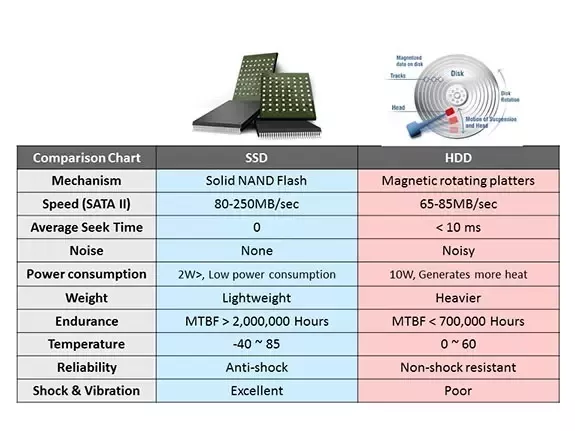
Look at the storage type and capacity. SSDs are faster and more reliable than HDDs. Make sure the laptop has enough storage for your files and programs. An SSD with at least 256GB is recommended.
Graphics Card
If you need the laptop for gaming or graphic design, check the GPU. Ensure it meets the requirements for your applications. Integrated graphics are fine for general use. But dedicated GPUs are better for demanding tasks.
Verify the Software and Operating System
Pre-installed Software
Check what software comes pre-installed. Ensure there are no unnecessary or malicious programs. A fresh installation of the operating system is ideal.
Operating System License
Verify the operating system is genuine and licensed. This ensures you receive updates and support. Ask for proof of sale or license keys if necessary.
Research the Seller
Check Seller’s Reputation
Research the seller’s reputation. Look for reviews and ratings from previous customers. A reputable seller is more likely to provide a quality product and good customer service.
Ask Questions
Don’t hesitate to ask the seller questions. Inquire about the laptop’s history, reason for selling, and any past issues. Honest sellers will provide clear and detailed answers.
Test the Laptop
Perform a Thorough Test
Before finalizing the sale, test the laptop thoroughly. Run different applications to check performance. Connect to Wi-Fi and test the internet connection. Play a video to ensure the speakers and display work well.
Use Diagnostic Tools
Use diagnostic tools to test hardware components. These tools can identify any hidden issues. They help ensure you don’t encounter problems later.
Consider Upgradability
Check Upgrade Options
Some laptops allow easy upgrades. Check if you can upgrade the RAM or storage. This can extend the laptop’s lifespan and improve performance. Upgradable laptops offer more flexibility and value.
Cost of Upgrades
Consider the cost of potential upgrades. Calculate if upgrading an older laptop is worth it compared to buying a new one. Sometimes, the cost of upgrades can approach the price of a new laptop.
Compare Prices
Research Market Prices
Research the market prices for similar models. Ensure you are getting a fair deal. Compare prices from different sellers. A lower price isn’t always better if the laptop has issues.
Factor in Extra Costs
Include extra costs in your budget. These might include new batteries, chargers, or software. Factor these into the total cost to avoid surprises.
Looking for a Good, Affordable Computer? Contact Us
Buying a used laptop can be a smart choice if you do your homework. But it can also be a nightmare if you buy one from the wrong person. If you’re looking for reliable hardware for business or home, we’re here to help. We have some great options for value and performance.
Contact us today to learn more.
—
This Article has been Republished with Permission from The Technology Press.
-

Cybersecurity Certifications: The Gateway to Career Advancement
In today’s fast-evolving digital landscape, cybersecurity has become a cornerstone of organizational resilience. As cyber threats grow increasingly sophisticated, the demand for skilled cybersecurity professionals has never been higher. Whether you’re a seasoned cyber professional or just starting your journey, signing up for the GIAC Newsletter ensures you’re always informed and equipped for -

New HTML Smuggling Campaign Delivers DCRat Malware to Russian-Speaking Users
Russian-speaking users have been targeted as part of a new campaign distributing a commodity trojan called DCRat (aka DarkCrystal RAT) by means of a technique known as HTML smuggling.
The development marks the first time the malware has been deployed using this method, a departure from previously observed delivery vectors such as compromised or fake websites, or phishing emails bearing PDF -

U.S. Sanctions Two Crypto Exchanges for Facilitating Cybercrime and Money Laundering
The U.S. government on Thursday sanctioned two cryptocurrency exchanges and unsealed an indictment against a Russian national for his alleged involvement in the operation of several money laundering services that were offered to cybercriminals.
The virtual currency exchanges, Cryptex and PM2BTC, have been alleged to facilitate the laundering of cryptocurrencies possibly obtained through